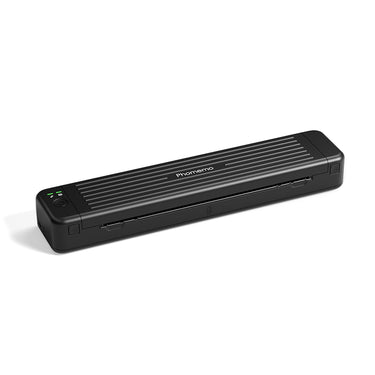
Phomemo M08F Plus trådlös tatueringsstencilskrivare med pekskärm
$194.99Save $35/
Save
$35
Save EXTRA $35
with our discount code.
Code: Black35Copy Code
Get it now, pay later in 3 interest-free installments.
Ge dina tatueringsdesigner liv med den uppgraderade M08F Plus Tattoo Stencil Printer. Denna trådlösa värmeöverföringsskrivare är utformad för professionella tatuerare och nybörjare och levererar rena, skrynkelfria schabloner när som helst, var som helst.
Enkel utskrift till smart utskrift:
Se batterinivån med en blick - Oroa dig aldrig för att batteriet tar slut mitt under en session.
Smart papperskontroll - Säkerställer att schablonpapperet är korrekt installerat, så att du kan skriva ut med förtroende varje gång.
Vanliga frågor på skärmen - Snabb hjälp precis där du behöver den, ingen manual krävs.
Smart anti-skrynkleteknik – Förhindrar pappersstopp och veck för en smidig utskrift.
Överlägsen utskriftskvalitet – Tydlig, lagerbaserad utskrift även för komplexa designer (bättre än M08F).
Kompakt och lätt: Väger mindre än 2 lbs, 1.5" tjock, mått 325×68×41mm
Effekt och kapacitet: 1200mAh litiumbatteri, upp till 140 sidor efter laddning
Hög kompatibilitet: Fungerar med iOS, Android, surfplattor, bärbara datorer, stationära datorer
Hög upplösning: 203dpi djupfärgad bildåtergivning, mjuka linjer
Bläckfri utskrift: Inget bläck eller toner behövs, miljövänligt och effektivt
Exklusiv mobilapp:AI generering av tatueringsdesigner och realtid förhandsvisning
Denna skrivare är endast kompatibel med Phomemo tatueringsschablonpapper. Inte kompatibel med överföringspapper från andra märken.
Läs mer
Pay With Ease
M08F Plus Tatueringsschablonsskrivare med pekskärm
Phomemo M08F Plus är en uppgraderad schablonskrivare för tatueringar, utformad för professionella tatuerare som vill ha ett snabbare, renare och mer intuitivt sätt att skapa termiska tatueringsschabloner. Med en inbyggd pekskärm och trådlös utskrift kan tatuerare förbereda designer utan att behöva förlita sig på en dator eller en komplicerad installation.
Betrodd av miljontals användare världen över tillför Phomemo över ett decennium av innovation till utskrift av tatueringsstenciler. M08F Plus bygger på beprövad termisk utskriftsteknik och kombinerar tillförlitlighet, bärbarhet och en design med fokus på tatuerare för daglig professionell användning.
Fullständig pekskärm & miljövänlig utskrift
Den kompletta pekskärmen gör att tatuerare kan styra utskrifter, kontrollera status och justera inställningar direkt på enheten. Termisk utskriftsteknik eliminerar bläck och toner, vilket gör M08F Plus till en miljövänlig tatueringsstencilskrivare som håller arbetsytan ren och effektiv.
Utskrifter överallt där du går
M08F Plus stöder både USB- och Bluetooth-anslutningar, vilket gör att tatuerare kan skriva ut stenciler från telefoner, surfplattor eller datorer. Oavsett om du arbetar i en studio eller på resande fot håller trådlös utskrift av tatueringsstenciler arbetsflödet flexibelt och oavbrutet.
Smart kontroll i överblick
Med batterinivå i realtid, pappersstatus och kalibreringsvägledning som visas på skärmen hjälper M08F Plus konstnärer att snabbt identifiera och åtgärda utskriftsproblem. Kalibrering med en knapptryckning minskar driftstopp och säkerställer jämn kvalitet på tatueringsstenciler.
2.01” LCD-smart pekskärm
Den 2.01-tums LCD-pekskärmen gör M08F Plus enkel att använda även under intensiva tatueringssessioner. Tatuerare kan ansluta enheter, justera ljusstyrkan, köra självtester och få tillgång till hjälpfunktioner direkt på skrivaren.
Multi-scenarieanvändning
Utformad för flera olika tatueringssituationer fungerar M08F Plus smidigt i studior, på mässor, vid gästspel och i mobila tatueringsuppsättningar. Dess portabla storlek och trådlösa design gör den till en pålitlig stencilskrivare för tatueringar varhelst tatuerare arbetar.
Byggd för precision och portabilitet
Varje detalj i M08F Plus är konstruerad för pålitlighet – från det snabblöstagbara pappersskyddet till skrivhuvudet för termoutskrift med 203 dpi. Lätt, hållbar och bläckfri är den den perfekta stencilpartnern för alla professionella tatuerare.
Designad för tatuerare
Från oberoende tatuerare till hektiska studior levererar M08F Plus stencilutskrifter i professionell kvalitet. Hög hastighet, skrynkelfritt läge och precision för fina linjer säkerställer att varje design överförs skarpt till huden. Oavsett om det gäller linjearbete, skuggning eller stora motiv anpassar sig denna skrivare till ditt kreativa arbetsflöde.
Enkla steg för att skriva ut och överföra
Att skriva ut med M08F Plus är intuitivt: lägg i ditt stencilpapper, starta enheten, skriv ut din design och överför den med tatueringsgel. Hela processen tar bara några minuter — ett rent och effektivt sätt att förbereda varje tatueringssession. Phomemo-appen stöder även AI-generering av design och mallskärning för att öka hastigheten i ditt arbetsflöde.
Vad finns i lådan & varför uppgradera
Varje M08F Plus-paket innehåller skrivaren, sammetsfodral, USB-C-adapter och kabel, snabbstartsguide samt 10 premium transferpapper.
Jämfört med den tidigare M08F-modellen erbjuder Plus-versionen 60 % bättre pixelskärpa, skrynkelfri utskrift och upp till 40 timmars batteritid – en komplett uppgradering för moderna tatuerare.
You are currently on our US Store.
Switch to the EU Store to enjoy:
🎁 10% OFF your first order
⚡ Faster local shipping & EUR pricing
We use cookies to ensure the best experience on our website and assist with our marketing efforts. By
continuing to browse, you agree to our cookie policy.


 M08F Plus Touch Screen Tattoo Stencil
 M08F Wireless Tattoo Stencil
 TP81 Wireless Tattoo Template Printer
 TP31 Bluetooth Tattoo Stencil
 TP83 Wireless Tattoo
 TK32 DIY Temporary Tattoo Maker Kit




 DE
DE
 EU
EU